You're Losing Because of What You Hear, Not What You See: The Console Audio Lag Problem Nobody Talks About

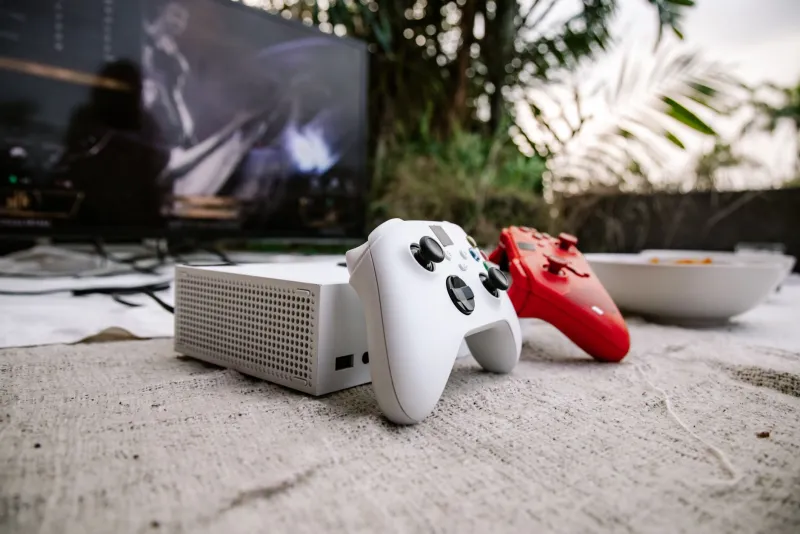
Photo by Photo by Fethi Benattallah on Unsplash on Unsplash
Here's a scenario: you're deep into a ranked match, you hear footsteps — or at least you think you do — you spin around, and you're already dead. You blame your reaction time. Maybe you blame lag. But what if the real culprit was your audio arriving a fraction of a second after the moment that actually mattered?
Audio latency is one of the most overlooked performance issues in console gaming. Gamers obsess over display refresh rates, input lag, and resolution modes, but almost nobody thinks to question whether the sound coming out of their TV or headset is actually synced to what's happening on screen. Spoiler: in a lot of setups, it isn't — and that gap is quietly wrecking your competitive play.
What Is Audio Latency and Why Does It Happen?
At its core, audio latency is the delay between when a sound event occurs in the game engine and when that sound actually reaches your ears. It sounds simple, but the signal chain between your console and your eardrums is surprisingly long.
Your console processes audio data, sends it through HDMI to your TV, which then processes the audio signal through its own internal decoder before pushing it out to the speakers. Modern TVs — especially the big, feature-packed models — are essentially computers running serious image and audio processing pipelines. All that smart processing takes time. We're typically talking anywhere from 20 to 200 milliseconds of added delay depending on your TV's picture mode and audio settings.
20 milliseconds might sound insignificant, but competitive gamers live and die in windows that small. And on the higher end, 100–200ms is something you can actually feel, even if you can't immediately identify it as an audio problem.
Soundbars and AV receivers connected via HDMI ARC or optical cables add their own processing layers, too. Dolby Atmos decoding, virtual surround simulation, EQ processing — all of it takes time. Some setups stack these delays on top of each other without the user ever knowing.
Why Certain Game Genres Get Wrecked Harder
Not every game suffers equally from audio lag. The impact depends entirely on how much you rely on audio cues to inform your actions.
Competitive shooters like Call of Duty, Apex Legends, and Rainbow Six Siege are brutal environments for audio latency. Directional sound tells you where enemies are, when they're reloading, when a door opened, and when a grenade just landed three feet behind you. If that information arrives even 80ms late, you're reacting to something that already happened. On a 60fps game, 80ms is nearly five full frames of missed information.
Rhythm games like Beat Saber or Guitar Hero make audio lag immediately obvious because your inputs are literally scored against the beat. These games usually have a built-in audio offset calibration tool for exactly this reason — but most players never touch it.
Horror and immersive single-player games suffer differently. The delay doesn't kill your K/D ratio, but it quietly chips away at immersion. A jump scare loses its punch when the visual and audio hit your senses at different moments. Environmental audio that feels "off" makes a crafted world feel cheap.
Sports and fighting games sit somewhere in the middle. In Street Fighter 6 or Mortal Kombat 1, audio cues tied to attack animations can actually train you to anticipate moves. When those cues are delayed, muscle memory built over hours of play starts working against you.
Diagnosing Your Own Setup
Before you go buying new gear, figure out how bad your situation actually is. Here are a few practical ways to check:
- The clap test: Play a game where a character claps or stomps rhythmically on screen. Watch the motion and listen. If the sound feels like it's trailing the animation, you've got a problem.
- Rhythm game calibration: Boot up any rhythm game with an offset calibration tool. The number it spits out is a real-world measurement of your system's audio delay.
- Your TV's picture mode: Switch to Game Mode on your TV right now if you haven't already. Most modern TVs cut processing delay dramatically in this mode — sometimes from 80ms down to under 15ms for both video and audio.
The Fixes: Start Free, Then Spend Smart
Step 1 — Enable Game Mode on Your TV
This single change is the most impactful thing most people can do for free. Game Mode bypasses a huge chunk of your TV's processing pipeline. Every major TV brand has it — Samsung, LG, Sony, TCL — and it's usually buried in the picture settings. Turn it on. Seriously, stop reading and go do it right now if you haven't.
Step 2 — Check Your Console's Audio Output Settings
Both PS5 and Xbox Series X give you control over audio output format. If you're running a setup that doesn't actually support Dolby Atmos or DTS:X decoding, forcing those formats can create processing overhead that adds latency. Set your audio output to match what your system can actually handle — PCM stereo or PCM 5.1 is often lower latency than bitstream formats on simpler setups.
Step 3 — Use Your TV's Audio Sync / Lip Sync Tool
Most TVs have a manual audio delay adjustment in the sound settings, sometimes called "Audio Sync" or "A/V Sync." If your audio is running behind the video, you can nudge it forward. It won't fix hardware-level processing delay, but it can compensate for some of the mismatch between your TV's video and audio pipelines.
Step 4 — Reassess Your Soundbar or Receiver
If you're running a soundbar through HDMI ARC, try switching to optical or even just your TV's built-in speakers temporarily. If your competitive performance improves, your soundbar's processing is the bottleneck. Many soundbars have a "Direct" or "Game" mode that strips out audio processing — dig into those settings.
Step 5 — Go Wired with a Gaming Headset
This is where the real competitive gains live. A wired headset connected directly to your controller (or via USB to your console) completely sidesteps your TV's audio processing chain. The sound goes from the console to your ears with minimal additional delay. Wireless headsets using proprietary 2.4GHz dongles (like the PlayStation Pulse series or SteelSeries Arctis Nova) are also very low latency — far better than Bluetooth, which adds its own 100–200ms delay and should be avoided entirely for competitive play.
When It's Worth Spending Money
If you've exhausted the free fixes and you're still noticing issues — or if you're playing competitively enough that every millisecond genuinely matters — a dedicated gaming monitor is the nuclear option. Gaming monitors designed for console use (27-inch 1440p or 4K panels with HDMI 2.1) typically have input lag under 5ms in game mode, with audio processing to match. You're trading screen size for performance, but for shooter mains, it's often worth it.
A quality wired headset in the $50–$100 range will also do more for your competitive audio experience than a $300 Dolby Atmos soundbar. Priorities matter.
The Takeaway
Audio latency is a real, measurable problem that affects a huge number of console setups right now — including yours, probably. The good news is that most of the fixes cost nothing and take about five minutes to implement. Start with Game Mode, check your audio output settings, and consider going wired on your headset. You might be surprised how much sharper your game feels when what you hear actually matches what you see.
Your reaction time isn't the problem. Your setup might just finally be.